


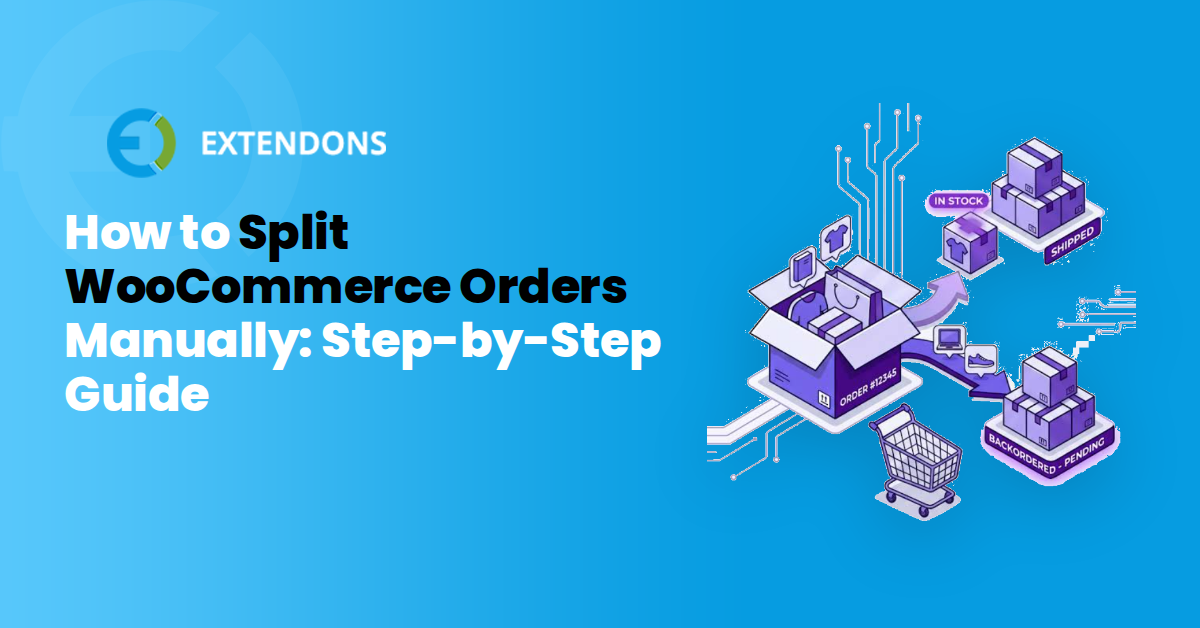
Splitting a WooCommerce order means dividing its line items into separate child orders so you can ship them on different dates, from different warehouses, or with separate invoices. WooCommerce Split Orders Manager handles splits manually from the order screen or automatically via checkout rules, keeping parent-child relationships intact and sending customer notifications without extra work. The manual alternative (recreating orders by hand) works for rare cases but costs time and invites inventory errors once volume picks up.
Why Order Splitting Matters for Your Store
Splitting shows up whenever a single checkout becomes two or more shipments or invoices: a customer buys three items but one is backordered; an order mixes products from two warehouses; a business buyer needs separate invoices for different cost centers; one item is oversized and must ship alone; or a wholesale order mixes items at different tax treatments. Handling these manually means recreating line items, correcting stock counts, and hoping nothing is counted twice. Every minute spent manually rebuilding an order is a minute not spent shipping it, and manual rebuilds are where inventory errors quietly start.
How to Split WooCommerce Orders?
WooCommerce supports two approaches. You can split entirely from the admin screen with no plugin (fine for occasional one-offs), or automate the whole thing with rules so qualifying orders split themselves at checkout before you ever touch them.
Method 1: Split Orders Using Orders Manager
Order Manager for WooCommerce replaces the manual copy-and-delete routine with controls that sit directly on the order screen. The extension splits, merges, and clones orders, adds automated split rules at checkout, and sends customer and admin notifications when an order changes shape.
Step 1: Install and Activate Orders Manager
IDownload the plugin zip file from your WooCommerce Marketplace account. Choose the downloaded zip file, click Install Now then Activate. Go to WooCommerce>Settings>Orders Manager to begin configuration. You should now see an Orders Manager tab under WooCommerce Settings with four sub-tabs: General, Split Orders, Merge Orders and Notifications.
Step 2: Turn On Split, Merge, and Clone Orders
The General tab is where you decide which order operations your store offers. Nothing works until the relevant toggles are switched on.
- Enable Split Orders reveals the split controls on the order admin screen and unlocks both manual and automatic splitting.
- Default Split Child Status sets the order status that child orders receive when a split creates them.
- Enable Merge Orders allows combining multiple orders into one survivor order from the admin order screen or order list actions.
- Source Order Status After Merge controls the status applied to the original orders once a merge finishes.
- Enable Clone Orders lets staff duplicate an order, including its line items and metadata.
- Default Clone Status sets the status assigned to cloned orders.
You should now see split, merge, and clone actions available on your orders, and an OM Relation column that tracks how orders are connected.
Step 3: Split an Order Manually
Manual splitting handles irregular cases that rules cannot predict, such as a customer who wants one item shipped to a different address. Open the order you want to divide. The split controls appear directly on the order admin screen. Select the line items you want moved into a child order, then run the split. You should now see one or more child orders, each holding the items you assigned.
Tip: Check that Default Split Child Status matches how your fulfillment team works. A child order sitting in a status your warehouse never picks up will stall silently.Step 4: Configure Auto Split Rules
Automated rules remove the need to babysit incoming orders. Open the Split Orders tab.
- Enable Auto Split runs your configured rules automatically when checkout completes on both shortcode and block checkout.
- Allowed Source Statuses sets the order statuses eligible to be auto split.
- Show Order Timeline/Graph In My Account displays a split and merge timeline in the customer's My Account order view when the order has linked children or parents.
You should now see auto split running on new orders, and customers see a visual history of linked orders in their account.
Step 5: Build a Split Rule
A rule tells the extension which orders to divide and how. Click Add New Rule under Split Rules to open the rule builder.
- Title gives the rule a name.
- Enabled turns the rule on or off.
- Condition Type chooses what you are matching against: category, product, SKU, quantity threshold, or shipping class.
- Condition Value sets the specific value to match against the chosen condition type.
- Output Strategy determines how the split happens: Single Child, Multi Split by Items, or Multi Split by Quantity.
- Priority controls the order in which rules apply when more than one matches.
You should now see your rule listed under Split Rules ready to run on the next qualifying checkout.
Method 2: Split Orders Manually Without a Plugin
WooCommerce ships with an order editing screen that lets you add and remove line items, but it has no split button. The manual method works by creating new orders by hand and copying data from the original, then changing the original so it no longer fulfills the items you moved. It costs nothing and needs no plugin. It also takes time per order once you account for line items, taxes, shipping, coupons, and customer emails. Every field you retype is a chance to introduce a mismatch between what the customer paid and what the two orders say.
Step 1: Duplicate the Order Shell
Building a new order from scratch forces you to replicate every detail of the original. Go to WooCommerceOrders and open the order you want to split. Note the customer's name, email, billing address, shipping address, and payment method. Click Add Order at the top of the Orders list. Search for the existing customer under Customer so the new order links to the same account, or enter the billing details manually. Set the status to Pending payment so nothing ships before you finish. Paste a reference to the original order number into the Customer note or Order notes field. You should now see a new order with the correct customer attached and no products in it yet.
Step 2: Add the Items That Are Moving
Each product line you add to the child order must match exactly what is leaving the parent. Inside the new order, click Add item(s) under Order items then search for each product by name or SKU. Set the Quantity to match exactly what is leaving the original order. Check the Subtotal on each line. If the customer bought at a sale price that has since ended, the new order will pull today's price unless you edit the line total by hand. Add Shipping as a line item only if the moved items need their own shipment. Apply the original Coupon only if it was a fixed discount, since a percentage coupon will recalculate against a smaller basket. You should now see a second order whose line items match the portion you are separating out.
Step 3: Zero Out the Original Order
The original order still claims to fulfill everything, so it has to be corrected. Leaving it untouched is the most common cause of double shipments. Return to the original order and click the pencil icon on each line item you moved. Remove the moved items entirely, or reduce their Quantity if only part of a line is leaving. Click Recalculate so totals, tax, and shipping refresh against the smaller basket. Adjust the Order total manually if the payment was already captured and the recalculated figure no longer matches what the customer was charged. Add a private Order note recording the split, the new order number, and the reason. You should now see the original order containing only the items it will actually ship.
Step 4: Reconcile Payments, Taxes, and Refunds
Two orders holding one payment is the failure mode that ends in a refund dispute. Reconcile before you mark anything as processing. Copy the original transaction ID into the new order's notes for your records, and leave the payment gateway alone unless a real second charge is needed. Check tax lines on both orders. WooCommerce recalculates tax per order, so a split can shift a customer into a different tax treatment. If the customer overpaid because of shipping or coupon math, issue a partial refund through the gateway rather than editing totals to hide the difference. Email the customer before shipping so the second order number does not look like a duplicate charge.
Warning: Take a full database backup and test on a staging copy before splitting live orders. There is no undo in the WooCommerce order screen.Handling Shipping and Taxes After a Split
Splitting an order is easy. The awkward part comes when a single shipment turns into two and the customer paid one shipping fee based on the original cart weight and destination. WooCommerce does not automatically re-price shipping once line items land on separate orders.
Task after splitting |
Orders Manager |
Manual split without a plugin |
|---|---|---|
Assigning a child order status |
Default Split Child Status applies automatically |
Set status on each new order by hand |
Customer visibility of the split |
Show Order Timeline/Graph In My Account displays linked parents and children |
Customer sees unrelated-looking orders |
Notifying the customer |
Manual Split Completed or Auto Split Completed events fire on your terms |
You send a manual email or hope they notice |
Time per split |
30 seconds to click and assign items |
10 to 15 minutes per order to recreate, recalculate, and reconcile |
Taxes are a sharper edge of this problem. A split changes the taxable base on each order, and if the original order qualified for a threshold-based rule or a destination rate, the children may land on a different figure than the parent did. Keep a paper trail: Orders Manager records the relationship in the OM Relation column and in the Order Timeline of both orders. On a manual split you have to note that link yourself in the order notes. If you recalculate shipping and tax by hand on every split, you have not really saved time, you have just moved the work downstream.
- Decide before splitting whether the customer pays extra shipping for the second parcel, and say so in the notification email.
- Check the tax line on each child order against the parent before you mark anything completed.
- Use the Orders Manager notification events so the customer learns about the change from you, not from a surprise second charge.
When to Use Orders Manager vs. Manual Splitting
Orders Manager adds split controls to the order screen, handles auto-splitting at checkout with configurable rules, and manages customer notifications and parent-child relationships automatically. The manual route works for occasional one-off splits but becomes a liability once volume picks up. Stores splitting more than a few times a month should install the plugin and configure rules for their most common cases, because every minute saved on rebuilding orders is a minute closer to shipping them.
Troubleshooting Common Split Order Issues
Most split order problems trace back to one of four causes: stock was not allocated to the child order, the payment capture was not moved, shipping was never recalculated, or the split happened after the order was already dispatched. Work through the list below before you touch the database.
If stock still shows the full quantity on the parent order after a split
WooCommerce reduces stock once, at the moment an order moves to a paid status, using the line items on that order. When you create a child order, the child starts its own status and can trigger its own stock event, which is why stores sometimes see inventory deducted twice or not at all. Check the Default Split Child Status setting. If child orders land in a status that reduces stock, the same units get deducted again. A non-reducing status (such as Pending payment or On hold) keeps the ledger clean until you are ready. Compare the parent and child order notes side by side. If only the parent recorded a stock reduction, the inventory is correct and no action is needed. If both orders reduced stock, add the missing units back on the child order's product line, then let the parent order own the real deduction.
If the customer reports a duplicate charge
A split does not create a second payment, but it can create a second payment attempt if the child order inherits a payable status and the customer receives a fresh payment link. On manual and offline gateways, the risk is higher because staff often collect payment separately for each child. Confirm which order holds the actual transaction by looking for the gateway transaction ID, usually visible on the parent order. If a child order also shows a captured payment, refund the duplicate from the child, not the parent, so your reports stay consistent. Set the child order to a status that does not request payment, then notify the customer with the correct context.
If shipping is not recalculating correctly for the child orders
Shipping methods are calculated from the cart at checkout, not from the order after the fact. Splitting a multi-item order into separate shipments means the original single shipping charge no longer matches what you are actually paying the carrier. For splits by item, recalculate per-package rates in your shipping setup and add the difference as a manual fee on the child order. For splits by quantity, check whether your shipping method charges per item or per order. Per-order rates need an adjustment; per-item rates usually stay accurate. If you use table rate or weight-based shipping, recheck the child weights, since a single heavy item moved to its own order can change the bracket.
If the split does not appear in your fulfillment or ERP tool
Most integrations sync on order status change or on order creation, and a child order created directly in the admin may not trigger the webhook your connector listens for. Check your connector's log for the child order ID. If it is missing, nudge the order through a status transition (for example, Pending to Processing) to fire the event.
Conclusion
Splitting orders is inevitable once your store grows beyond one-off sales. WooCommerce gives you the tools to do it manually, but the real efficiency comes from automation and clear communication. Orders Manager handles both, turning a 15-minute manual rebuild into a 30-second click, keeping parent-child relationships visible in your reports and your customer's account, and notifying both customer and staff when an order changes shape. Install it, enable the operations you need (split, merge, or both), configure rules for your most common splits, and watch your fulfillment team's time-per-order drop.
 30-day money back guarantee
 Dedicated Support Team
 Safe & Secure Free Update
 Safe Customized Solutions