


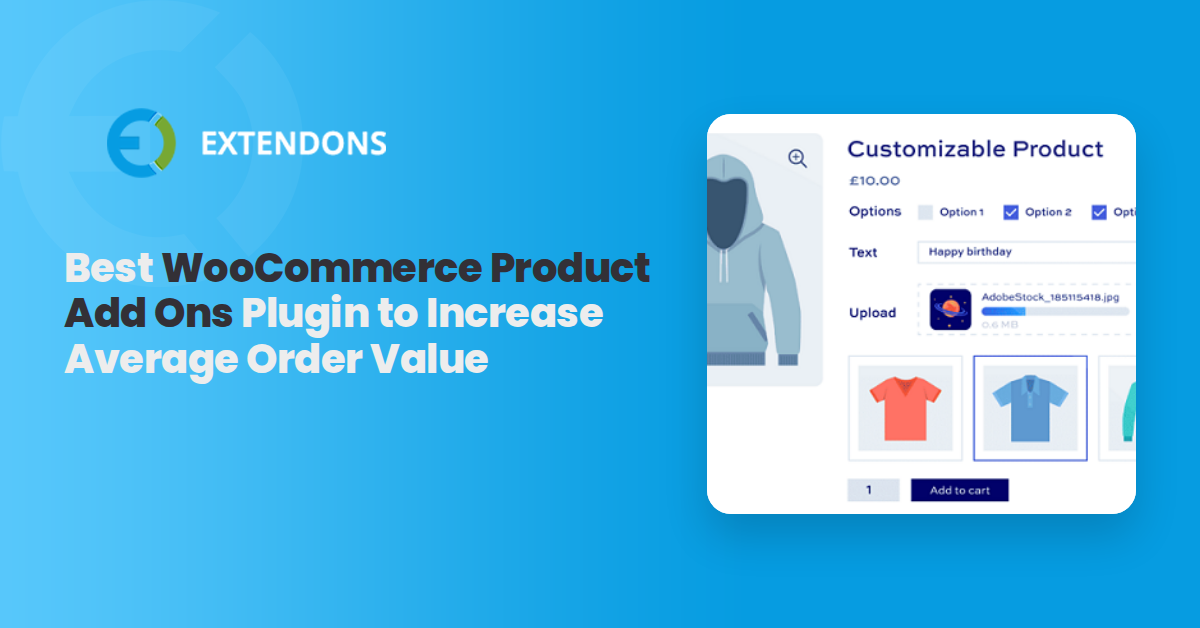
WooCommerce product add ons let you sell upgrades, customizations, and extras directly on WooCommerce product pages, turning a simple checkout into a revenue driver. This article evaluates plugins that accomplish this, looking at conditional logic, field types, pricing flexibility, integration ease, and real-world performance for store owners who want to increase their average order value.
Product Addons and Extra Options is the top pick for its 19 field types and genuine conditional logic that shows or hides options based on customer selections. For complex B2B pricing, PluginHive's WooCommerce Product Addons works well. For stores needing lightweight field additions without complexity, the official WooCommerce Product Add-Ons extension is a solid runner-up. We reviewed nine plugins overall.
What Are WooCommerce Product Add Ons Plugins?
WooCommerce product add ons let you sell customizations, upgrades, and optional extras on standard WooCommerce product pages. By default, WooCommerce only supports simple variable attributes and a basic text field. An add-ons plugin unlocks checkboxes, radio buttons, dropdown menus, file uploads, date pickers, and number fields that can be priced individually or set to free. Merchants use them to charge for engraving, gift wrapping, insurance, rush shipping, or tiered product variations that do not fit the standard variable product model. The result is that customers can personalize their purchase while the store captures revenue that would otherwise be lost.
Why Your Store Needs a Product Add-Ons Plugin
Without add-on fields, every request for a customization becomes a manual email exchange. A plugin automates that process and captures the extra revenue automatically.
- Charge for customizations. Let customers add engraving, monograms, or custom colors with a fixed or percentage-based price. The extra cost is added to the cart total immediately.
- Offer add-ons based on user choices. Conditional logic can show a warranty upgrade option only when the customer selects an expensive base product. This keeps the page clean while still surfacing relevant upsells.
- Increase average order value without discounting. Instead of running sales, add low-cost extras like gift wrapping or expedited shipping. Proven ways ecommerce stores can increase average order value are documented, as are best ways to use WooCommerce Product Addons for this purpose. The AOV rises without cutting into margins on core products.
- Reduce support requests. When customers can self-select the exact options they need, there are fewer emails asking for those options.
- Handle regulated or compliance-driven products. Add mandatory checkboxes for terms acceptance or required file uploads for custom designs. The plugin ensures every order includes the necessary data.
- Create bundles and kits. Let customers build a custom bundle from a product (pick 3 items from these 10 options) and price it based on their selections.
What to Look for in a Product Add-Ons Plugin
Not every plugin handles the same scenarios. Here are the criteria that separate a usable solution from a frustrating one.
Conditional Logic
The best plugins let you show or hide fields based on a customer's previous selection. For example, display a shipping insurance option only when the cart total exceeds a certain amount. Without this, customers see irrelevant options on every page.
Pricing Flexibility
Can you set a flat fee, a percentage of the product price, or a per-unit price? Stores selling variable-quantity items (e.g., fabric by the yard) need per-unit pricing. Percentage pricing is essential for tiered services like extended warranties.
Field Types
A good plugin offers a variety of field types: text, textarea, dropdown, checkbox group, radio buttons, file upload, date picker, color picker, number, and heading/description labels. Fewer types means you may need a second plugin later.
Integration With Other Tools
The add-on data should appear in the order details, export to CSV, and sync with fulfillment or accounting tools. If the plugin stores add-on values only in a custom table that nothing else reads, you will have to build workarounds.
Performance
Extra script loading on product pages can slow down site speed. Look for a plugin that loads its assets only on pages where add-ons are actually configured. Minimal database queries during page load also matter for large catalogs.
Compatibility
Test that the plugin works with your theme and with page builders like Elementor or Divi. Check that it supports WooCommerce's latest version and remains compatible with current WordPress releases.
Quick Comparison Table
Plugin |
Best For |
Key Strength |
Pricing |
|---|---|---|---|
Stores needing 19 field types with conditional logic |
19 field types, full conditional logic, 30-day money-back guarantee |
Paid |
|
PluginHive WooCommerce Product Addons |
B2B stores with tiered pricing and bulk discounts |
Bulk pricing rules and dynamic discount tables |
Paid |
WooCommerce Product Add-Ons (Official) |
Simple field additions on standard products |
First-party support and native WooCommerce integration |
Paid |
YITH WooCommerce Product Add-Ons |
Stores needing multilingual add-ons |
WPML and Polylang compatibility built in |
Freemium |
Extra Options for WooCommerce (ThemeHigh) |
Quick deployment without developer help |
Drag-and-drop field builder with prebuilt templates |
Freemium |
WPC Product Add-Ons |
Bundle and kit building |
Pricing rules for composite products and kits |
Freemium |
Product Add-Ons Ultimate (Plugin Republic) |
Stores that want a single setup then forget it |
One-click global add-on sets applied across categories |
Paid |
ACF Custom Product Addons (Festi) |
Developers customizing fields with code control |
Custom post type fields reused across products |
Paid |
TM Extra Product Options (Inspire Labs) |
High-customization stores needing image swatches |
Color and image swatches as selectable add-ons |
Paid |
1. Product Addons and Extra Options
Product Addons for WooCommerce is built for stores that need variety in their custom fields without adding code. You get 19 field types including text, textarea, dropdown, checkbox group, radio buttons, file upload, date picker, color picker, number, heading, content, image swatch, color swatch, range slider, and more.
The conditional logic engine lets you show or hide fields based on any previous selection. Set up a free add-on that becomes mandatory when a certain option is chosen, or charge a fee that only appears after a specific condition is met.
- 19 field types covering text, file, date, color, swatches, and range sliders
- Full conditional logic to show or hide fields based on customer selections
- Global add-on sets that apply to entire categories or all products at once
- Free and paid add-ons mixed on the same product
- Per-unit and percentage pricing for quantity-based products
- 30-day money-back guarantee on the premium version
Pricing: $49.
Best for: Store owners who want the most field types and conditional logic in a single install, especially those selling customizable items where options change based on the base product selected.
Why it ranked here: No other plugin in this list offers 19 field types combined with conditional logic out of the box. The depth of field variety alone makes it the most versatile pick for stores with diverse product lines.
2. Plugin: Hive WooCommerce Product Addons
PluginHive's WooCommerce Product Addons focuses on pricing rules that go beyond simple flat fees. You can set tiered pricing based on quantity, apply bulk discounts to add-ons, and create dynamic price tables that update as the customer selects options. T
he plugin works well for B2B stores where a single product might have different pricing for wholesale vs. retail customers. Conditional logic is present but less deep than the top pick; it covers basic show/hide based on field values. The plugin stores all add-on data in standard WooCommerce order meta, so it exports cleanly to CSV and works with most fulfillment systems.
- Tiered and bulk pricing for add-ons based on quantity selected
- Dynamic pricing tables that recalculate as customers choose options
- B2B-specific rules for different pricing per user role
- Standard WooCommerce order meta storage for easy export to CSV and third-party tools
- Conditional logic for basic field show/hide based on selections
Pricing: Paid.
Best for: B2B wholesale stores that need per-role pricing and bulk discounts on product add-ons.
Why it ranked here: The tiered pricing engine is the best in this list for B2B scenarios, but the conditional logic is less complete than the top pick, placing it second for general use.
3. WooCommerce Product Add-Ons (Official)
The official WooCommerce Product Add-Ons extension gives you a straightforward way to add extra fields without third-party dependencies. It includes standard field types like checkboxes, radio buttons, dropdowns, and text fields. Pricing is limited to flat fees; there is no percentage or per-unit pricing.
Conditional logic is absent in the free version but available in the paid upgrade. Because it is a WooCommerce.com extension, updates are guaranteed and support comes from the same team behind WooCommerce core. The plugin integrates directly with the product data metabox, so all fields appear exactly where merchants expect them.
- Official WooCommerce.com extension with guaranteed core compatibility
- Standard field types (checkbox, radio, dropdown, text, textarea, file, date)
- Global add-on groups that apply across multiple products
- Flat-fee pricing only per add-on
- Paid upgrade unlocks conditional logic and more field types
Pricing: Freemium.
Best for: Store owners who prefer first-party extensions and need only basic field additions on a few product pages.
Why it ranked here: First-party support is valuable, but the limited field types and lack of percentage pricing make it less flexible than alternatives. It is a safe pick for simple needs, not complex ones.
4. YITH WooCommerce Product Add-Ons
YITH WooCommerce Product Add-Ons stands out for its built-in multilingual support through WPML and Polylang. The plugin offers text fields, checkboxes, radio buttons, dropdowns, date pickers, and file upload fields. You can set prices as flat fees, percentages, or per-unit amounts. Conditional logic is available in the premium version, letting you show or hide fields based on other selections.
The plugin adds a 'Product Add-Ons' section in the product data tabs and supports global groups that apply to entire categories. The interface uses YITH's standard metabox layout, which is familiar to anyone who has used other YITH plugins.
- WPML and Polylang compatibility for multilingual stores out of the box
- Percentage, flat fee, and per-unit pricing
- Conditional logic in the premium version
- Global add-on groups for categories and tags
- File upload with size and type restrictions
Pricing: Freemium.
Best for: Stores running in multiple languages where add-on labels need to appear in the customer's language.
Why it ranked here: The multilingual support is a genuine differentiator, but the conditional logic is locked behind the paid version and the total field type count is lower than the top pick.
5. Extra Options for WooCommerce (Theme: High)
ThemeHigh's Extra Options for WooCommerce is built around a drag-and-drop field builder that requires no coding. You choose from text, textarea, dropdown, checkbox, radio button, date picker, and number fields, then drag them into position. Pricing options include flat fee and percentage of product price.
The free version supports basic field types, while the premium version unlocks file upload, conditional logic, and global groups. The plugin stores data in WooCommerce order items, so it works with standard export plugins. ThemeHigh provides documentation with screenshots for each step, making it a good choice for store owners who dislike reading technical manuals.
- Drag-and-drop field builder with no shortcode or code requirements
- Flat fee and percentage pricing
- Premium upgrade adds file upload, conditional logic, and global groups
- Order item meta storage for clean data export
- Prebuilt field templates for common scenarios (gift wrap, engraving, etc.)
Pricing: Freemium.
Best for: Non-technical store owners who want to set up add-ons quickly without touching code or shortcodes.
Why it ranked here: The drag-and-drop builder is genuinely user-friendly, but the free version is too limited for stores with more than a handful of products, and the premium price does not match the field variety of the top pick.
6. WPC Product Add-Ons
WPC Product Add-Ons specializes in bundles and kits where customers assemble a product from a selection of options. You can create "pick 3 from these 10 items" rules with individual pricing for each component. The plugin handles tiered pricing, minimum and maximum selection limits, and quantity-based pricing on each add-on.
Field types include text, dropdown, checkbox group, radio buttons, file upload, date picker, and color picker. Conditional logic is available for basic show/hide rules. The plugin integrates with WPC's suite of bundle and discount plugins, making it part of a larger ecosystem for stores that want kit building and group deals.
- Bundle and kit rules with minimum/maximum selection limits
- Tiered pricing per component inside a kit
- Field types including color picker, date picker, and file upload
- Quantity-based pricing per add-on
- Integration with WPC bundle and discount plugins
Pricing: Freemium.
Best for: Stores that sell build-your-own kits or customizable bundles where customers select a specific number of items from a larger set.
Why it ranked here: The kit-building rules are excellent for stores that sell bundles, but for general product add-ons (single field additions) the feature set is narrower than the top pick.
7. Product Add-Ons Ultimate (Plugin Republic)
Product Add-Ons Ultimate from Plugin Republic is designed for stores that want to set up add-ons once and apply them across entire catalogs. You create a global group of fields and assign it to a category, tag, or custom taxonomy. Every product in that group immediately shows the same add-ons.
The field types include text, dropdown, checkbox, radio, file upload, date picker, and number. Pricing options are flat fee and percentage. Conditional logic is present but limited to simple value matches. The plugin's strength is its bulk application workflow a store owner can define a standard set of customization options for a product line and never touch individual products.
- One-click global add-on sets applied by category, tag, or custom taxonomy
- Flat fee and percentage pricing
- Field types including text, dropdown, checkbox, radio, file, date, number
- Conditional logic for basic field show/hide
- Bulk application across hundreds of products in seconds
Pricing: Paid.
Best for: Large catalog stores where the same add-ons (e.g. warranty, gift wrap, rush shipping) should appear on every product in a category.
Why it ranked here: The bulk application feature is genuinely useful for stores with hundreds of products, but the field type count and conditional logic depth are lower than the top pick, making it more of a niche tool.
8. ACF Custom Product Addons
Festi's ACF Custom Product Addons is built for developers who want to reuse custom fields across multiple products using the Advanced Custom Fields (ACF) framework. You create a custom field group in ACF with your specific field types (text, image, file, repeater, etc.) and assign it to WooCommerce products.
The plugin then renders those fields on the product page and passes them to the cart and order details. Pricing is done through custom code or ACF's own field settings rather than a traditional add-on pricing interface. This approach gives maximum flexibility but requires comfort with ACF setup and some PHP knowledge.
- Built on the ACF framework for developers who already use custom fields
- All ACF field types available including repeater, file, image, relationship, and more
- Reusable field groups across any number of products
- Full control via code for pricing calculations and conditional display
- Works with ACF Pro for advanced field options
Pricing: Paid.
Best for: Developers or agencies who are already using ACF and want to extend it into WooCommerce product pages without learning a new plugin system.
Why it ranked here: It offers maximum developer flexibility but no pricing interface. Non-developers cannot use it without hiring someone, which limits its audience compared to the top pick.
9. TM Extra Product Options (Inspire Labs)
TM Extra Product Options from Inspire Labs focuses on visual customizations through color swatches and image swatches as selectable add-ons. Customers can click a color box or image thumbnail to choose an option, and the price updates in real time.
The plugin supports text, dropdown, checkbox, radio, file upload, date picker, and number fields alongside the swatches. Pricing includes flat fee, percentage, and per-unit amounts. Conditional logic is available in the premium version. The plugin's visual swatch system is its standout feature it works well for products where visual choice is the primary customization (furniture upholstery, apparel colors, etc.).
- Color swatch and image swatch selectors as interactive add-on fields
- Flat fee, percentage, and per-unit pricing
- Standard field types including text, dropdown, checkbox, radio, file, date, number
- Conditional logic in the premium version
- Real-time price display as swatches are selected
Pricing: Paid.
Best for: Apparel, furniture, and home goods stores where customers choose options based on color or pattern rather than text labels.
Why it ranked here: The swatch system is genuinely helpful for visual product categories, but the general field type count is lower than the top pick and the swatch feature alone does not justify the price for non-visual industries.
Which Product Add-Ons Plugin Is Right for You?
The best plugin for your store depends on your specific needs regarding field variety, pricing complexity, and technical skill level.
Best for Maximum Field Variety
Product Addons and Extra Options covers the widest range of field types including color swatches, range sliders, and file uploads. Choose this if you manage multiple product categories, each needing different field configurations.
Best for B2B and Wholesale Stores
PluginHive WooCommerce Product Addons handles tiered pricing, bulk discounts, and per-role rates. Use this if you sell to both retail and wholesale customers from the same product page.
Best for Multilingual Stores
YITH WooCommerce Product Add-Ons has built-in WPML and Polylang support. This is your best option if your store operates in multiple languages and add-on labels must change per language.
Best for Non-Technical Users
ThemeHigh Extra Options for WooCommerce offers a drag-and-drop builder with prebuilt templates. Pick this if you have no coding experience and want to set up fields visually.
Best for Kit Building
WPC Product Add-Ons handles "pick 3 from 10" rules and minimum/maximum selection limits. Choose this if your store sells customizable bundles rather than individual product add-ons.
Common Mistakes to Avoid
Store owners often make the same few errors when setting up product add-ons. These are worth watching for.
- Turning every product into a variable product first. Many owners try to use WooCommerce's built-in variable product system for add-ons and end up with many SKUs. Add-on fields avoid this entirely by attaching extra options without creating new products.
- Overloading the product page with fields. Adding many optional fields to a single product page overwhelms customers and reduces conversion. Use conditional logic to hide irrelevant options until they become applicable.
- Forgetting to test on mobile. Some plugins display fields differently on small screens. Test your add-on setup on a phone before publishing to ensure fields are tappable and readable.
- Setting add-on prices that eat into core margins. If the add-on costs a significant portion of its price in supplies, the add-on is barely profitable. Calculate the actual cost before setting the price.
- Storing add-on data only in a custom table. Some plugins save add-on values in a separate database table that WooCommerce reports and export tools cannot read. Verify that add-on data appears in your order export files.
- Skipping staging site testing before the update goes live. Add-on configuration can conflict with your theme or other plugins. Always test on a staging site before deploying to your live store.
How to Get Started
Getting a product add-ons plugin running takes under an hour if you follow the right order of operations.
- Choose the plugin that matches your field type and pricing needs from the list above.
- Install the plugin through WordPress Admin > Plugins > Add New, or download and upload the zip file if you purchased a premium version.
- Go to the product edit screen for the product where you want add-ons, and locate the 'Product Add-Ons' tab (or similarly named section) in the Product Data metabox.
- Add your first field, set the pricing, and configure any conditional logic rules so that fields show only when specific conditions are met.
- Make a test purchase using a staging or development site to confirm that add-on selections appear in the cart, in the checkout order details, and in the order confirmation email.
After you have verified everything works on your staging site, deploy the configuration to your live store. The Product Addons and Extra Options plugin is a strong starting point for most stores because its 19 field types and conditional logic cover the widest range of common scenarios.
 30-day money back guarantee
 Dedicated Support Team
 Safe & Secure Free Update
 Safe Customized Solutions