- $USD
- English (United States)
- Hire an Expert
- Get Support



- Blog
- Create a Custom WooCommerce My Account Dashboard
A WooCommerce My Account page is often treated like a simple utility area, but in reality it becomes one of the most visited sections after checkout. Customers return here to track orders, download files, manage profiles, and check account related updates, so the way this area is structured directly affects usability.
The default WooCommerce layout is functional but very limited when it comes to structure and personalization. Every user sees the same fixed endpoints and navigation, which works for basic stores but starts to feel restrictive once a store grows or offers different types of products and customer roles.
A more flexible approach is to build a structured account dashboard where endpoints, layouts, and content blocks can be customized based on how users actually interact with the store.
Let’s get started!
Step 1: Set up the Account Dashboard Structure
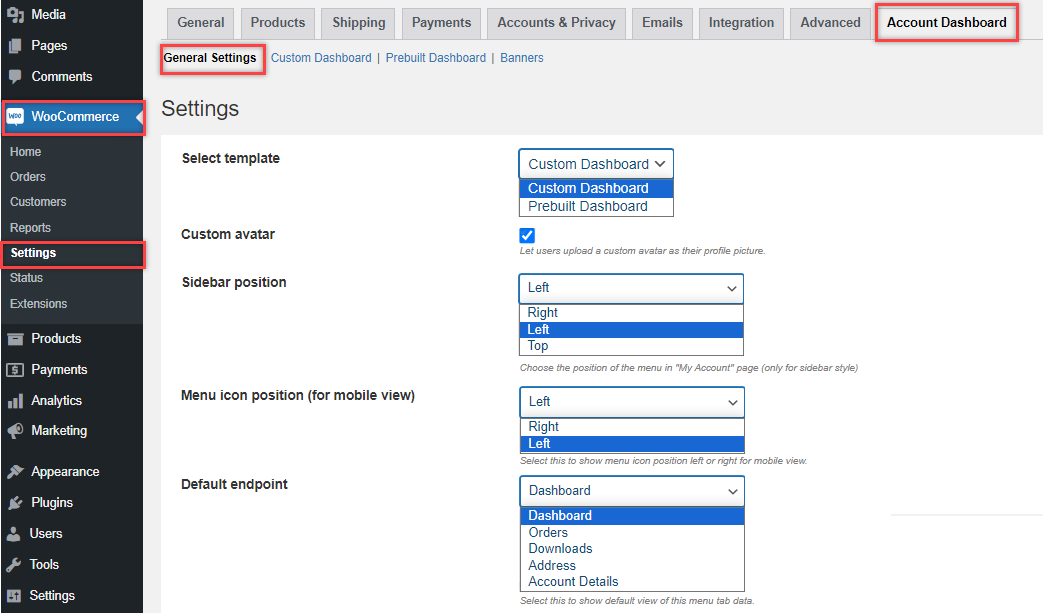
After installing and activating WooCommerce my account page plugin, the dashboard settings become available inside WooCommerce under the Account Dashboard section.
From the General Settings area, you can define the base structure of the account page before adding endpoints or customization layers.
Here you can:
- Choose between Custom Dashboard or Prebuilt Dashboard layout depending on how flexible you want the structure to be
- Set sidebar placement such as left, right, or top depending on your theme layout
- Enable or disable user avatar display for a more personalized account experience
- Control default endpoint behavior so users land on a specific section when they open My Account
- Adjust basic layout elements like icon size, text size, spacing, and menu alignment
This step basically defines how the dashboard framework behaves before any content is added.
Step 2: Build Structured Navigation Using Endpoints
Navigation inside the account dashboard is not limited to simple tabs. The plugin allows you to structure the entire menu using different endpoint types.
You can:
- Create Group Endpoints to combine multiple related sections under one expandable menu item
- Add individual endpoints for specific functions like orders, downloads, or custom content
- Create Link Endpoints that redirect users to external pages or store sections
- Use Page Endpoints to display full WordPress pages inside the account area
- Each endpoint can be customized with icons, labels, and visibility rules based on user roles. You can also rearrange everything using drag and drop, which makes it easier to restructure the dashboard as your store evolves.
Step 3: Add Personalization Elements Like Avatars and Visual Identity
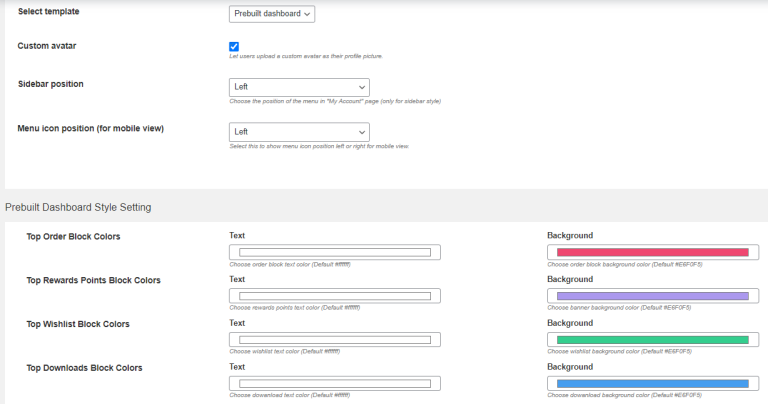
The dashboard can be made more personal by allowing users to upload and manage their profile avatars directly from the account area.
This helps create a more familiar experience for returning customers and makes the dashboard feel less static.
You can control:
- Whether avatar uploads are enabled or disabled
- Where avatar is displayed inside the dashboard layout
- How user identity is visually presented in the account area
- Even though this looks like a small addition, it changes how connected users feel to their account space.
This feature helps users feel more connected to their accounts and adds a human touch to your store.You can check out how to edit my account page woocommerce as well.
Step 4: Customize Endpoints with Full Content Control
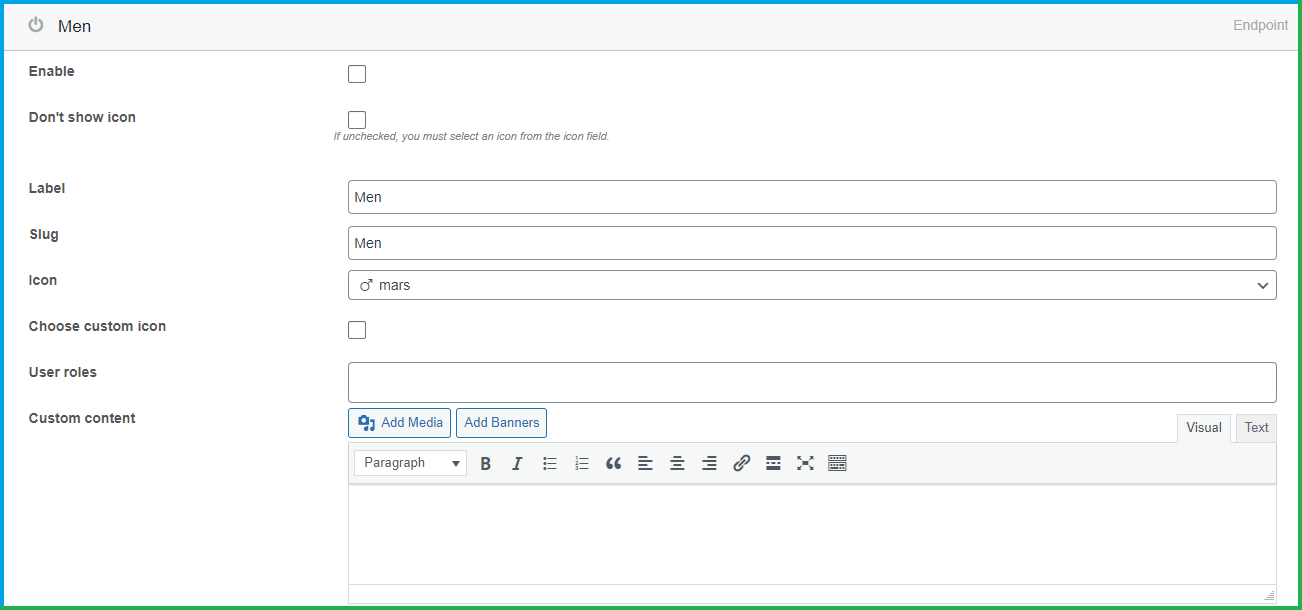
Each endpoint inside the dashboard can be fully customized using a built in editor. This is where the dashboard becomes more than just navigation and starts behaving like a structured content area.
Inside endpoints, you can:
- Add custom text, images, links, shortcodes, and structured content using a visual editor
- Assign endpoints to specific user roles so only relevant customers can see certain sections
- Replace or modify default WooCommerce endpoints like orders or downloads
- Add banners or visual blocks inside endpoints for better presentation
- This makes it possible to turn the account page into a dynamic user space instead of a static list of links.
There’s also the option to show dynamic item counts (like the number of items in a wishlist or pending orders), which can be displayed with badges on menu items.
Step 5: Add Pages, Links, and External Navigation
Beyond standard endpoints, the dashboard also supports extended navigation options that help connect different parts of your store.
You can create:
- Page Endpoints – show any WordPress page inside the dashboard (even hidden pages).
- Link Endpoints – redirect users to external links, product pages, or documentation.
- Grouped Tabs – combine related pages under a single dropdown-style menu.
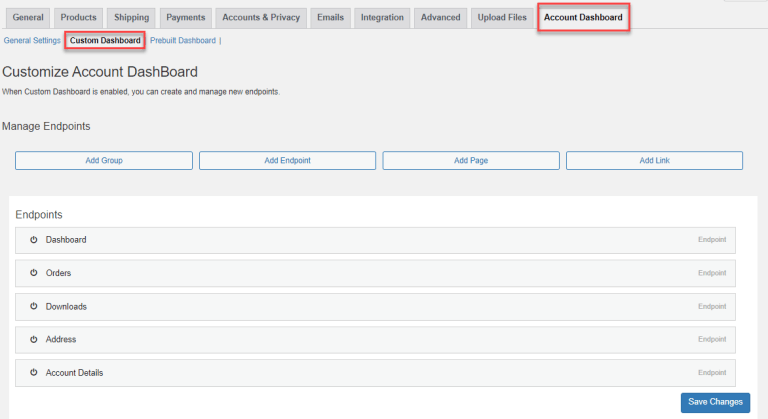
These features are perfect for adding things like FAQs, Return Policy pages, or special offers inside the account area.
Step 6: Review and Launch
Once you’ve set everything up, it’s time to review and test. Here’s a quick checklist:
- Make sure all menu items are working.
- Check visibility for different user roles.
- Review how it looks on desktop and mobile.
- Customize banners and check links.
- Use the “Restore to Default” option if needed.
Don’t forget to ask a few customers or colleagues to test the dashboard and give feedback.
Conclusion
Building a custom WooCommerce My Account Dashboard doesn’t have to be complicated. With the Customize Account Page & User Dashboard plugin, you can create a user-friendly, professional-looking dashboard that fits your brand and improves your customers’ experience.
A custom dashboard makes your WooCommerce store feel more polished, adds trust, and gives you the flexibility to guide customers exactly where you want them to go.
Frequently Asked Questions
1. Do I need to know coding to customize the WooCommerce My Account dashboard?
No, this plugin offers a fully visual interface. You can customize everything from the admin panel without writing a single line of code.
2. Can I show different menu options to different user roles?
Yes, you can assign endpoints and banners to specific user roles. This is great for stores with multiple user types like vendors, customers, or members.
3. Will this customization affect the core WooCommerce functionality?
No, the plugin works alongside WooCommerce. You can even restore the default WooCommerce endpoints with a single click if needed.
4. Can I add custom pages or external links to the dashboard?
You can create new endpoints that link to custom pages or even outside websites. You can also set them to open in a new tab.
5. Does the plugin work with mobile devices?
Yes, the dashboard is mobile-friendly and lets you adjust icon positions and layouts for smaller screens.
Share Article
-
 30-day money back guarantee
-
 Dedicated Support Team
-
 Safe & Secure Free Update
-
 Safe Customized Solutions