- $USD
- English (United States)
- Hire an Expert
- Get Support



- Blog
- How to Add woocommerce product image zoom to Your Store
How to Add woocommerce product image zoom to Your Store
Presenting your products is one thing, but how you present them plays a huge role in the attraction that your store provides. A product with high-quality images might be crucial, but at times, even that tends to be not enough. Why? The requirements have greatly increased. Now, customers want to be able to inspect the products they are about to purchase in more detail. This might apply to clothes, electronics, and even handcrafted items.
For this, all you need is a zoom image feature. It zooms on hover or clicking, depending on what feature the exact plugin provides. An image zoom functionality is practically essential if you are running a WooCommerce store. You will greatly affect two factors: user experience and conversions.
In this blog, we’ll walk you through how to add product image zoom using the WooCommerce Product Image Zoom plugin, an all-in-one solution offering Magnifier, Lightbox, and 360° Image Zoom options.
Let’s get started.
2 Simple Steps to Add Product Image Zoom
Step 1: Install and activate
To begin, you’ll need to install the plugin:
- Download the WooCommerce product image zoom plugin.
- Head over to your WordPress dashboard and find Plugins, then click Add New.
- Next, select “Upload Plugin,” pick the ZIP file from your computer, and press “Install Now.”
- Once you have installed it, click on “Activate” to enable the plugin.
After the activation process, your plugin will pretty much be integrated into your WooCommerce store automatically. You can also tweak the settings from WooCommerce > Settings > Product Image Zoom.
For detailed setup instructions, check out the documentation for the product zoom plugin for WooCommerce. It covers everything from installation to advanced settings configuration.
Step 2: Enable WooCommerce Product Zoom
Now that the plugin is installed, it’s time to choose how you want the zoom functionality to behave on your site.
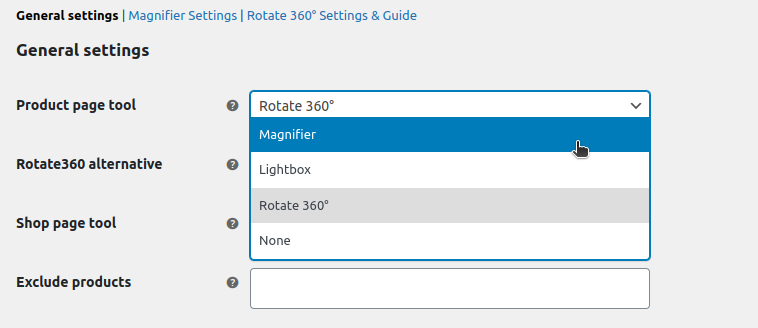
Under the General Settings tab, you’ll find options to:
- Select the zoom tool (Magnifier, Lightbox, or 360° View) for product pages and shop/category pages.
- Exclude specific products or categories from Zoom features.
- Enable auto-slider in Lightbox view.
- Set an alternative view when a 360° image isn’t available.
You can activate Zoom for your entire catalog with just a few clicks—or fine-tune it product by product.
Which Type of Product Image Zoom to Prefer
Different products demand different zoom experiences. That’s why this plugin offers three types of zoom tools, each tailored to enhance how your products are viewed:
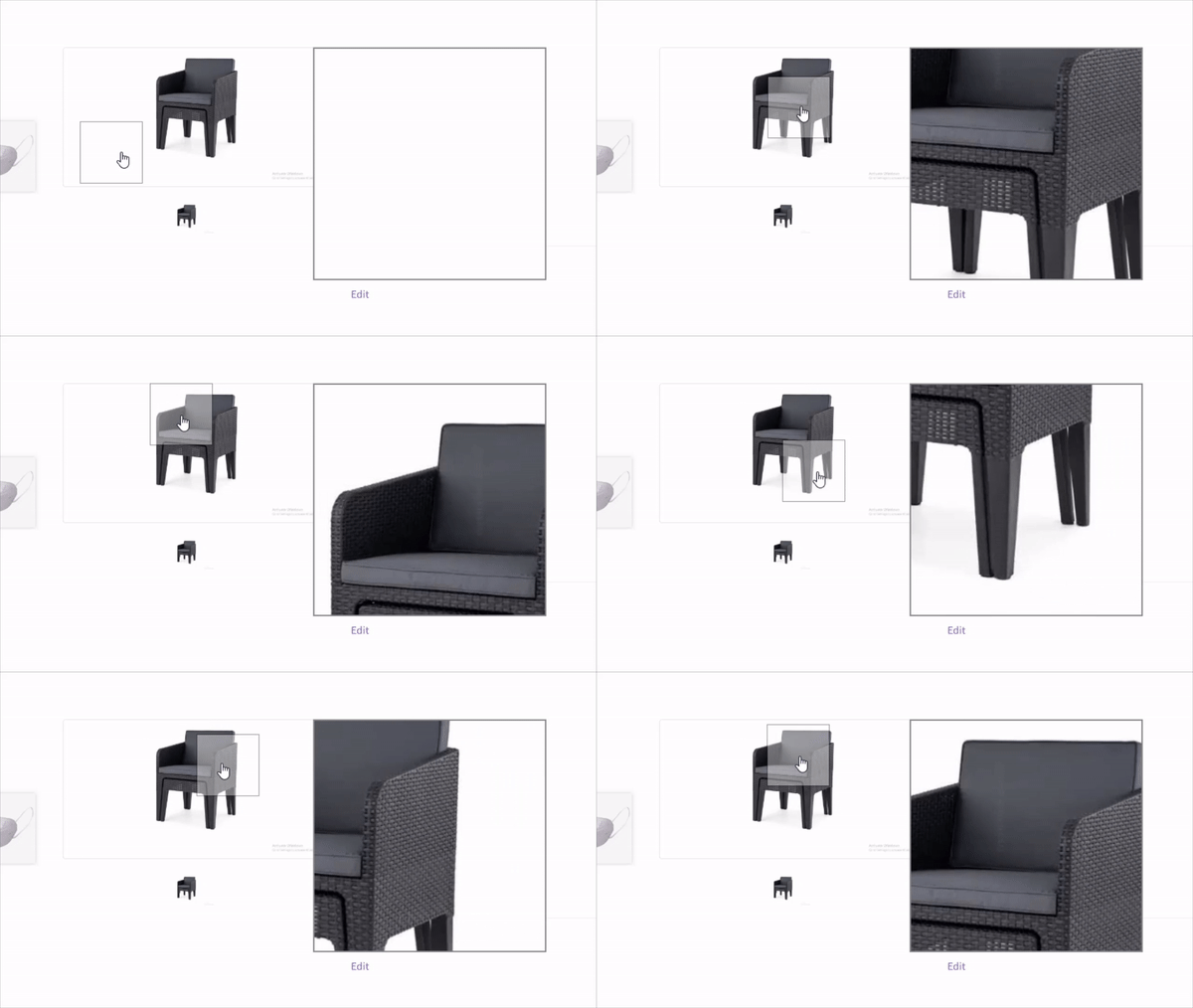
- Magnifier: Ideal for textiles, accessories, or anything with fine detail. Customers can hover over the image to see a magnified section in real time.
- Lightbox is better suited for showcasing larger product images. When a customer clicks the image, it opens in full-screen view.
- 360° Image View: Perfect for showing all sides of a product, like shoes, electronics, or furniture. Customers can rotate and interact with the image for a full experience.
Pro Tip: Combine these tools based on the product category. For example, use 360° View for gadgets and Magnifier for apparel.
Key Features of Product Zoom
3 Zoom-in Tools: Magnifier, Lightbox, and Rotate 360
The plugin includes three core zooming tools:
- Magnifier on Hover: Zooms in when users hover their cursor over the product image.
- Lightbox on Click: Opens the image in a pop-up for a detailed full-screen view.
- 360° Rotation: Users can rotate the product using a series of images, offering a full product view.
Each feature is designed to improve product visibility and customer engagement.
Add Magnifier or Lightbox Image Zoom to the Shop Page as Well
Want customers to zoom in directly from your Shop or Category pages? No problem.
The plugin lets you apply zoom effects beyond just the product detail page. Whether it’s the shop grid, related products, or category thumbnails, customers can get a detailed view without having to click through.
This helps shorten the buying journey and increases the chances of conversion.
Apply Zoom to All the Products at Once
No need to configure each product manually.
Once installed, the plugin allows you to apply image zoom across your entire catalog globally. You can choose the default zoom type, and all product pages will inherit this setting.
Want to apply different settings for a few items? You can override zoom settings per product with ease.
Exclude Specific Products or Categories from WooCommerce Zoom Features
Not every product needs a zoom effect. For example, simple items like gift cards or digital downloads might not benefit from zooming.
The plugin gives you complete control:
- Exclude individual products by selecting them in the settings.
- Exclude entire categories, so products in those groups don’t load unnecessary scripts or UI.
This keeps your site optimized and fast.
Choose from Multiple Types of Magnifiers, Such as Tint, Inner Zoom, Fade, and More
The magnifier isn’t a feature that works the same for everyone.
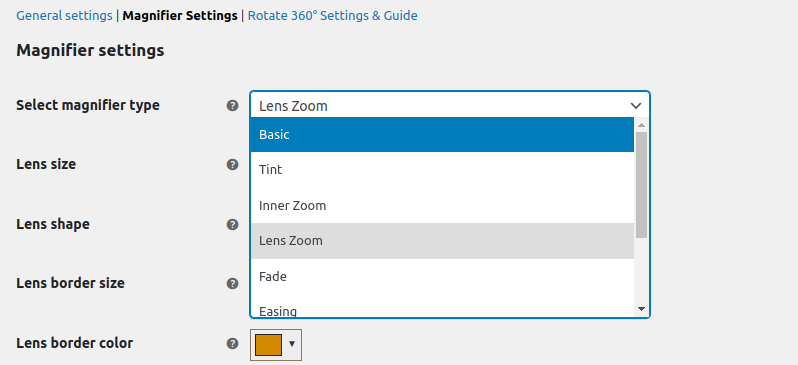
You get different magnifier styles to pick from depending on what fits your brand look or what users might like, like:
- Basic: A simple zoom box
- Tint: A colored overlay with zoom
- Inner Zoom: Zoom inside the image area
- Lens Zoom: Circular magnifying lens
- Fade: Smooth zoom-in transitions
- Easing & Mouse Wheel Zoom: Smooth zooming with user-friendly controls
- Window Zoom: Shows zoom in a separate pane (left, right, or bottom)
Each magnifier type is highly customizable.
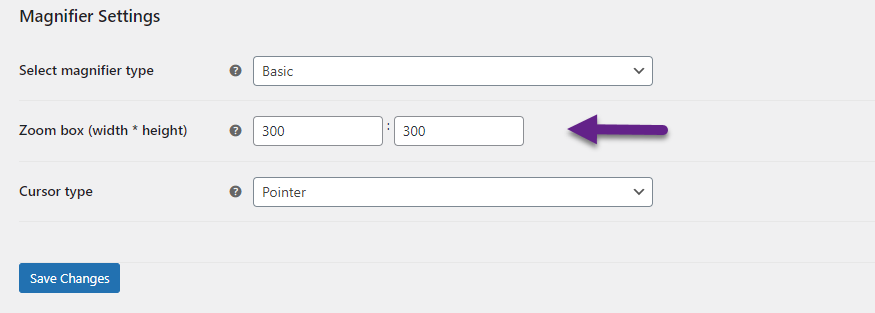
Customize the Magnifiers as Per Your Preferences
Go beyond default settings with detailed customizations:
- Zoom box size: Set width and height based on your layout.
- Cursor type: Use pointer, crosshair, or others.
- Lens size and shape: Configure rectangular or circular lenses.
- Opacity & tint color: Match zoom overlays with your site design.
- Zoom window position: Choose where the magnified image appears (right, left, bottom).
These advanced settings ensure your image zoom feels like a native part of your store, not a clunky add-on.
FAQs
Can I apply the zoom feature to all products at once?
Yes. In the General Settings, you can enable zoom for all products globally. You can also exclude specific items if needed.
Does this plugin work on mobile too?
Yes, it adjusts fine on phones, tablets, or desktops. It’s made to fit all screen sizes.
How do I add 360° images to my products?
Go to the product edit page in WordPress, scroll to the "Rotate 360 Image" section, and upload a ZIP file of images (named sequentially). Set image extension and auto-rotate speed as needed.
Can I add Lightbox or Magnifier to the shop page?
Yes. You can enable either (or both) zoom tools for the shop, related products, and category pages directly from the settings.
Is the Zoom tool customizable?
Yes, you can choose the magnifier type, zoom box size, lens shape, overlay color, and more.
What if I don’t have 360° images for a product?
You can set an alternative zoom tool (like Magnifier or Lightbox) to be used when 360° isn’t available.
Conclusion
Adding zoom to your product images in WooCommerce ain’t optional anymore—it’s something shoppers just look for. Folks wanna get a close look at stuff like they’re holding it in their hands. The WooCommerce product image zoom plugin makes that easy by giving you a bunch of solid features to work with.
You’ve got Zoom, Lightbox, and even 360° rotation all packed into one plugin. It makes your product pages look better, helps customers feel more sure about what they’re buying, and yeah—it helps with sales too.
It doesn’t matter if you sell clothes, gadgets, or handmade stuff—this plugin’s got the kind of image zoom shoppers expect when they’re thinking about hitting that “buy” button.
Share Article
-
 30-day money back guarantee
-
 Dedicated Support Team
-
 Safe & Secure Free Update
-
 Safe Customized Solutions