- $USD
- English (United States)
- Hire an Expert
- Get Support



- Blog
- Setting Up Variation Swatches in WooCommerce? Follow These Simple Steps
Setting Up Variation Swatches in WooCommerce? Follow These Simple Steps
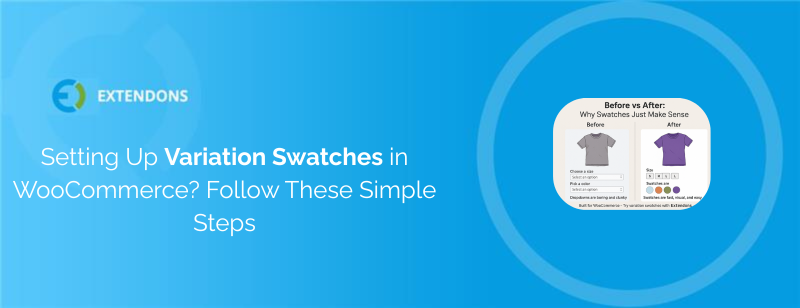
When running a WooCommerce store with variable products, product selection plays a big role in the customer’s decision-making. The default dropdowns for choosing size, color, or material often feel outdated and hard to navigate, especially on mobile. A better way is to display those options visually using variation swatches for WooCommerce.
Swatches let you show product attributes such as colors, sizes, images, and labels as clickable buttons or icons. This makes it easier for shoppers to understand and select what they want without extra clicks. In this guide, you'll learn how to set up WooCommerce variation swatches step-by-step, and why the Extendons plugin is a reliable option for your store.
Why Use Variation Swatches in WooCommerce?
The goal of swatches is simple: to replace dropdown menus with visual selection tools. Whether it's a color circle, a size label like “S” or “L”, or even an image representing the variation, customers can make quicker choices when options are easy to see.
Here’s what variation swatches can improve:
-
Better product visibility
-
Faster selection process
-
Fewer abandoned carts
-
Cleaner product layout on mobile and desktop
With the help of a WooCommerce variation swatches plugin, store owners can offer a smoother shopping experience that keeps visitors engaged and reduces confusion.
Choosing the Right WooCommerce Swatches Plugin
There are several plugins available, but if you are looking for one that stands out for both flexibility and ease of use, then you should get the Variation Swatches for WooCommerce by Extendons.
This plugin is compatible with the latest WooCommerce versions and is available directly from the official WooCommerce Marketplace. It's designed for both shop and product pages and allows full control over how swatches appear, function, and behave based on your store’s needs.
Features of the Extendons Variation Swatches Plugin
The Variation Swatches as Radio Buttons plugin by Extendons is available on the WooCommerce Marketplace and covers the full range of what a properly built variation swatches setup needs. Here is what it brings to the table before we get into the configuration:
- Display swatches as color blocks, dual color tiles, image swatches, text labels, or radio buttons
- Show swatches on both the product page and the shop or category pages
- Update the product image on the shop page when a customer hovers over or clicks a swatch
- Hide, blur, or cross out out-of-stock variations depending on what suits the store
- Apply swatches globally across all variable products or limit them to specific selected products
- Generate shareable variation URLs so specific product configurations can be linked directly
- Allow customers to edit their variation selection from the cart page without navigating back to the product
- Customize swatch shape, size, tooltips, and borders globally with product level overrides where needed
- Map each product attribute to its own swatch type independently
How to Install the WooCommerce Variation Swatches Plugin
To get started, purchase the plugin from the WooCommerce Marketplace and follow these steps:
-
Download the Plugin
-
After purchase, download the
.zipfile from your WooCommerce account.
-
-
Upload the Plugin
-
Go to your WordPress Admin dashboard.
-
Navigate to Plugins > Add New > Upload Plugin.
-
Upload the downloaded ZIP file and click Install Now, then Activate.
-
-
Access the Plugin Settings
-
Go to WooCommerce > Settings.
-
Click on the Variations as Radio Buttons tab to configure the plugin settings.
-
Configuring WooCommerce Product Variations Swatches
Once you install the WooCommerce variation swatches plugin, you must activate it. Once you do so, the plugin gives you several setting panels to work with. Let’s walk through each one:
1. General Settings
Under the General Settings tab, you can:
-
Choose what to do when a variation is out of stock:
-
Hide, Blur, or show with a Cross.
-
-
Select how variation images update on the shop page:
-
Change image on hover or click.
-
-
Decide where to show swatches:
-
All variable products or selected ones.
-
-
Enable shareable URLs for variations.
2. Shape Settings
Control the appearance of swatches:
-
Choose between Round or Square buttons.
-
Set width and height of swatches in pixels.
This allows you to align the swatches with your store’s design easily.
3. Tooltip Settings
You can enable tooltips that show attribute names or details:
-
Toggle tooltip on or off.
-
Choose font size, background color, and text color.
Tooltips can help clarify what each swatch stands for, especially if the label or image isn’t obvious.
4. Border Settings
Add or remove borders for the swatches:
-
Enable or disable border styles.
-
Pick a border color that matches your theme.
Borders help swatches stand out, especially if your product images or color options are subtle.
5. Map Attributes to Swatch Types
This setting lets you assign different types of swatches to different product attributes:
-
Color → Color swatches
-
Size → Text labels
-
Image → Image buttons
You can also customize shape and size for each attribute here. Note that these settings apply globally across your product catalog.
6. Product-Level Swatch Settings
If you want more control per product, you can override global settings on individual product pages:
-
Go to Products > Edit Product.
-
Scroll to the Product Data section and click on the Variation Swatches tab.
-
Enable custom settings for that product.
-
Choose swatch type, size, shape, and more.
This is useful when certain products need different variation displays (e.g., clothing vs. accessories).
Cart Page Variation Editing
Once swatches are configured and customers start using them there is one additional feature worth enabling that directly affects the post-selection experience. The cart page variation editing capability lets customers change their selected variation directly from the cart without having to navigate back to the product page.
If a customer adds a product with the wrong color or size they can update their selection in the cart instantly rather than removing the item, going back to the product, reselecting, and re-adding it. What we think this does for the checkout flow is meaningful because it removes a frustrating detour at exactly the point in the journey where you want customers moving forward rather than backward.
This feature is available within the plugin and applies to products where variation swatches are enabled.
Testing Before Going Live
Once the global settings, attribute mapping, and any product level configurations are in place it is worth spending a few minutes testing the setup from the customer side before considering it complete.
Open an incognito browser window and check the following:
- Swatches are displaying in the correct format for each attribute type across different products
- The product image updates correctly on the shop page when swatches are hovered over or clicked
- Out of stock variations are displaying with the correct treatment based on your chosen setting
- Tooltips are appearing on hover with the correct content type
- If you enabled the variation URL generator, check that sharing a variation URL lands on the correct product with the right variation pre-selected
- Test the cart page variation editing on a product by adding it and attempting to change the variation from the cart
Ready to Use Variation Swatches for Your Store?
Make your store easier to navigate and your products simpler to choose with the Extendons plugin.
Buy the official plugin from the WooCommerce Marketplace to get started today.
Final Thoughts
If your store sells products with multiple options like colors, sizes, styles, or materials, adding product variation swatches for WooCommerce is one of the easiest ways to improve the customer experience.
The WooCommerce variation swatches plugin by Extendons delivers all the features most store owners need, without being overwhelming. With clear setup options, full control over design, and reliable performance, it’s a practical choice.
You can purchase it directly from the WooCommerce Marketplace and get started right away.
FAQs
How to add variation swatches in WooCommerce?
Install a variation swatches plugin like the one from Extendons. Then configure swatches in the WooCommerce settings or on individual product pages.
Is Variation Swatches for WooCommerce free?
No, the Extendons version is a premium plugin available on the WooCommerce Marketplace.
What is the best variation plugin for WooCommerce?
The Extendons Variation Swatches plugin is widely trusted for its flexibility, compatibility, and user-friendly settings.
How do I add a variation in WooCommerce?
Edit your product, select “Variable Product” under Product Data, then define attributes and add variations under the “Variations” tab.
Read More
If you're looking for helpful insights on the best variation swatches plugins, check out this blog featuring a curated list of the top variation swatches for WooCommerce.
Share Article
-
 30-day money back guarantee
-
 Dedicated Support Team
-
 Safe & Secure Free Update
-
 Safe Customized Solutions